Deleting Files Using rm Command in Linux
rmThis tutorial demonstrates the use of command to delete files and directories
in Linux .
rmcommand is a Linux command used to delete objects. These objects can be files, directories, symbolic links, pipes, and sockets.
rmThe command does not move the deleted objects to Trash. It permanently deletes the objects and there is no way to recover deleted objects unless you have a backup.
rmThe command uses the following syntax.
rm [options] [file]
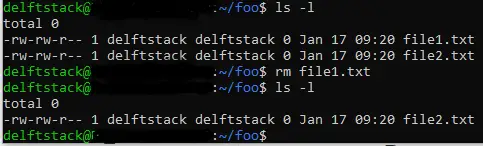
The following figure demonstrates the use of rmthe command to delete a file. We are currently in foothe directory and we use lsthe command to list the contents of the current directory.
fooThe directory has two files, file1.txtand file2.txt. To remove file1.txt, we use rmthe command and pass file1.txtin the name of as an argument.
To confirm that the files were deleted, we use lsthe command to list foothe contents of the directory and we see only file2.txt; nothing file1.txt.
We have permanently deleted it file1.txt.
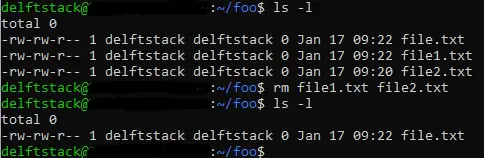
Here, we have demonstrated the use of rmcommand to delete multiple files. Use lscommand to list foothe files in directory.
fooThe directory contains three files; file.txt, , file1.txtand file2.txt. To delete file1.txtand file2.txt, we execute rmthe command and pass the file name as an argument, as shown in the following figure.
We executed lsthe command to check foothe contents of the directory and found that file1.txtand file2.txthad been deleted.
We use the -i-p command with -d option rmto delete files interactively. It tells rmthe -p command to ask before deleting files.
If there are multiple files, rmthe command will ask about each file before deleting it. Using -Iwill ask once for every three files it deletes.
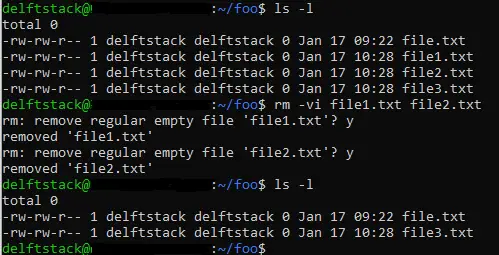
In the image below, we are in foothe directory. We use lsthe command to list the files in the current directory.
fooThe folder has four files; file.txt, file1.txt, file2.txtand file3.txt. To delete file1.txtand interactively file2.txt, we -iexecute rmthe command with the -p option.
We have also included the verbose -voption. The verbose option shows you rmwhat the command does to your terminal.
The following image shows rmthat the command prompts for confirmation before deleting a file; we used it with the -delete -ioption rm. After deleting the file, a message is displayed stating that the file has been deleted due to the verbose option.
Use the -r-d recursive command with the -p option rmto remove a directory that has subdirectories within it. -rThe -d recursive option tells rmthe -d recursive command to recursively remove the directory and its contents.
In the following image, we use the command with the -Rand -loptions lsto list foothe contents of the directory.
-RThe -d option is used to recursively list subdirectories and their contents, while -lthe -e option tells lsthe -d command to list the contents in a long listing format. We foosee a testdirectory called -d in the -d directory.
To delete foothe directory and all the subdirectories within it, we use the -d option with -rthe -p option rmto recursively delete a directory and its contents. We have also used -vthe -d option in the image to show rmwhat the -d command does from the terminal.

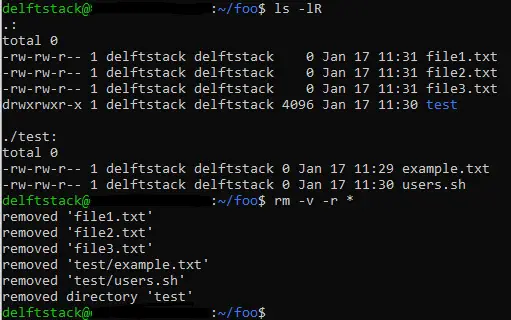
Here, we have demonstrated deleting all the files and folders in the current directory. We are in foothe directory and we use lsthe command with the -land -Roptions to list the contents of the current directory.
-lThe -d option tells lsthe command to display the output to standard output in a long listing format and -Rthe -d option tells lsthe -d command to recursively list the contents of subdirectories. The standard output shows that foothe folder has a testsubdirectory called .
To delete all the files in the current directory, we use the -r command with the wildcard character -r *. rmBelow we have used the -r command with -vthe -r and -r -roptions along with wildcard characters .*rm
-vThe -d option tells rmthe command to show what it is doing, so once a file is deleted, messages will be displayed on the terminal. -rThe -d option tells rmthe command to recursively delete subdirectories and their files.
In this case, rmthe command deletes the subdirectory testand the two files. The wildcard *means everything.
This context tells rmthe command to delete everything in the current directory.
In Unix-like operating systems, the root directory is the directory of all directories and files on the operating system. A forward slash /indicates the root directory.
Removing the root directory using rmthe command means removing all directories and files remaining on the system.
We run the command below rmto remove the root directory in Linux using command.
rm -v -r --no-preserve-root /
-vOptions are used to be detailed. -vOptions tell rmthe command to display rmcommands. -rOptions tell rmthe command to recursively remove directories and their contents.
This article is reproduced from: DelftStack
For reprinting, please send an email to 1244347461@qq.com for approval. After obtaining the author's consent, kindly include the source as a link.
Related Articles
How to decompress x.tar.xz format files under Linux
Publish Date:2025/04/08 Views:186 Category:OPERATING SYSTEM
-
A lot of software found today is in the tar.xz format, which is a lossless data compression file format that uses the LZMA compression algorithm. Like gzip and bzip2, it supports multiple file compression, but the convention is not to compr
Summary of vim common commands
Publish Date:2025/04/08 Views:115 Category:OPERATING SYSTEM
-
In Linux, the best editor should be vim. However, the complex commands behind vim's powerful functions also make us daunted. Of course, these commands do not need to be memorized by rote. As long as you practice using vim more, you can reme
Detailed explanation of command return value $? in Linux
Publish Date:2025/04/08 Views:58 Category:OPERATING SYSTEM
-
? is a special variable. This variable represents the return value of the previous command. That is to say, when we run certain commands, these commands will return a code after running. Generally, if the command is successfully run, the re
Common judgment formulas for Linux script shell
Publish Date:2025/04/08 Views:159 Category:OPERATING SYSTEM
-
In shell script programming, predicates are often used. There are two ways to use predicates, one is to use test, and the other is to use []. Let's take a look at how to use these two methods through two simple examples. Example 1 # test –
Shell script programming practice - specify a directory to delete files
Publish Date:2025/04/08 Views:98 Category:OPERATING SYSTEM
-
Usually, in Linux system we need to frequently delete some temporary files or junk files. If we delete them one by one manually, it will be quite troublesome. I have also been learning shell script programming recently, so I tried to write
Use of Linux command at - set time to execute command only once
Publish Date:2025/04/08 Views:158 Category:OPERATING SYSTEM
-
This article mainly involves a knowledge point, which is the atd service. Similar to this service is the crond service. The functions of these two services can be similar to the two functional functions of javascript. Those who have learned
Use of Linux command crontab - loop execution of set commands
Publish Date:2025/04/08 Views:170 Category:OPERATING SYSTEM
-
Compared with at , which executes a command only once, crontab, which we are going to talk about in this article, executes the set commands in a loop. Similarly, the use of crontab requires the support of the crond service. The service is s
Linux practice - regularly delete files under the directory
Publish Date:2025/04/08 Views:198 Category:OPERATING SYSTEM
-
Since we want to delete the files under the directory regularly, we need to use the Linux crontab command. And the content format of each work routine is also introduced in the format of each crontab work. Similarly, we need to use shell sc
How to use the Linux file remote copy command scp
Publish Date:2025/04/08 Views:151 Category:OPERATING SYSTEM
-
Scp copies files between two hosts over the network, and the data is encrypted during transmission. Its underlying layer uses ssh for data transmission. And it has the same authentication mechanism and the same security level as ssh. When u