Use git log with a range to display the commit history of a branch
git logThere are many options for limiting the number of commits you can get from your repository's history. We demonstrated git loghow rangeto use the double-dot syntax, the caret ^operator, --notoptions, and several shortcuts to help us view only git committhe history of a branch.
Git draws its power from this rich revision query system, enabling users to manage their branches and design efficient workflows with them.
git logGit commit history for branches
using and advanced restriction options
Git repositories can grow large with long commit histories. In such cases, viewing the full history is not very helpful.
git logThe command provides us with many useful options to extract the subset of commits we need from the repository history.
git log [formatting options] [limiting options]
[formatting options]Lets us display different information about our commits, while [limiting options]helps us select the commit we want to see.
When we limiting optionsprovide correct range values in these , we can git showcommit on the current branch.
<branch1>..<branch2>Git commit history for branches
using double-dot syntax
The double-dot syntax shows those commits that we can reach from branch2but not from branch1.
Suppose we mastercreate a new one from experiment_branch. We then commit to both branches, but don't merge them yet.
If we now experiment_branchdo a simple on git log, it will show the full history, including the commits we made experiment_branchon before creating .master
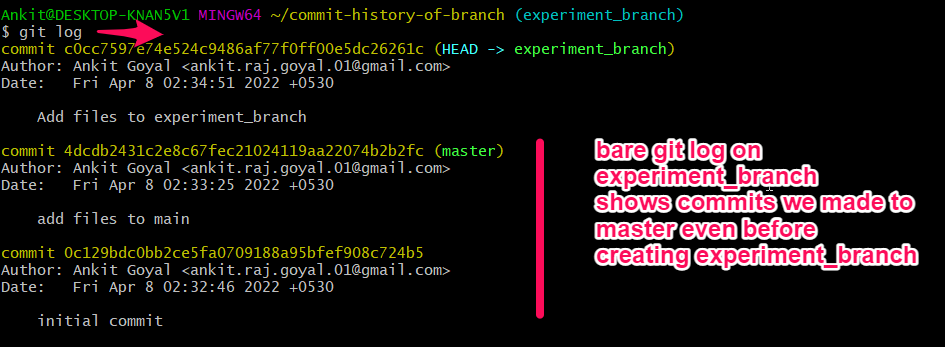
This is not very helpful behavior. A common use case is when we only want to see experiment_branchthe unmerged commits on .
We do this using the following command.
git log master..experiment_branch
All commits reachable from experiment_branch, but not masterreachable from (essentially, all unmerged commits on the experimental branch).

We can also flip the order of the branches to see the state of the we are about to merge experiment_branchour master.
Our masterlooks like this:
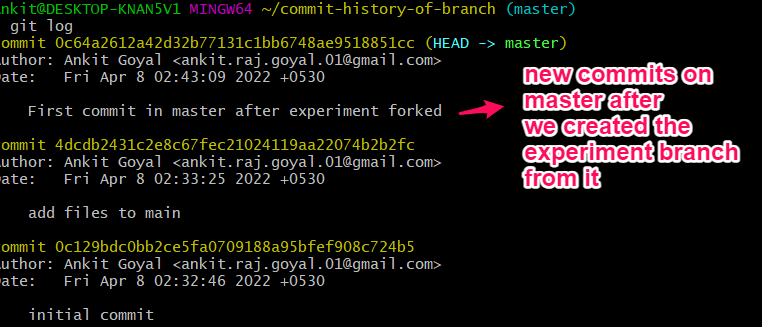
When we do this:
git log experiment_branch..master
After creating our experiment branch, we only see masternew commits on .

Use git logthe helpful shortcut of to save a few characters from typing to display the Git commit history for a branch
If we don't provide either of the two branches in the double-dot syntax, Git will default them to HEAD.
We can git checkoutuse this with a sensible choice of to shorten our git logcommands.
First, we switch to our experimental branch.
git checkout experiment_branch
Now HEADpoint to experiment_branch.
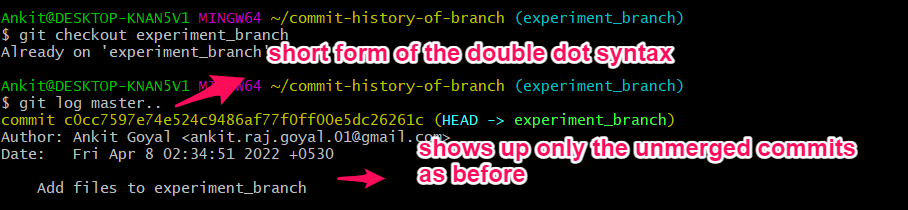
We now use a shorter version of the two-dot range syntax, omitting the right branch operand.
git log master..
Git defaults the correct branch to current HEAD, ours experiment_branch, and we get the same history of unmerged commits as above.
Use logto show commits on the current branch, useful option to only see the last few commits
Our experiment_branchmay have a long history, with many unmerged commits.
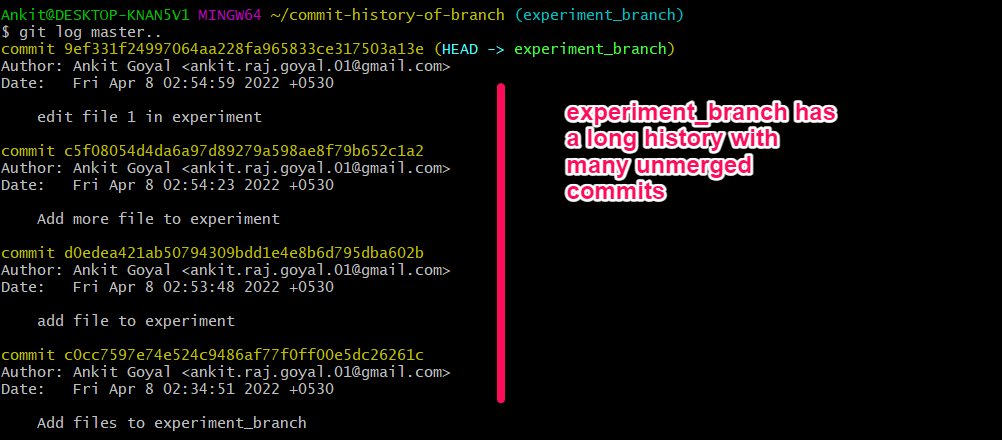
In this case, we probably only want to see the last few commits.
git log -2 master..
-2option to show only the last 2 commits in the history subset we selected.

^Git commit history for a branch
with the caret operator
The caret operator ^excludes all commits that are reachable from the branch it operates on. We can use this to only show the history of the current branch.
git log ^master experiment_branch

--notGit commit history for a branch
with the -b option
We can also use the -p option before the branch name --notto achieve the same result. This will not include all commits reachable from that branch.
git log experiment_branch --not master
We see that it does the same thing, only experiment_branchshowing the unmerged commits on our .

For reprinting, please send an email to 1244347461@qq.com for approval. After obtaining the author's consent, kindly include the source as a link.
Related Articles
Git installation and establishment of local warehouse service
Publish Date:2025/04/05 Views:89 Category:Git
-
Git is a distributed version control system: the client does not only extract the latest version of the file snapshot, but also completely mirrors the original code repository. It has the following advantages: a. Since every extraction oper
git remote operation——multiple remote repositories for one project
Publish Date:2025/04/05 Views:131 Category:Git
-
Multiple remote repositories for a git project In our git project, the command to operate the remote repository information is $ git remote # 查看当前所有的远程仓库的名称 $ git remote -v # 查看远程仓库的名称和远程仓
Git cherry pick command usage
Publish Date:2025/04/05 Views:190 Category:Git
-
git cherry-pick is a powerful command that allows us to select an arbitrary Git commit by reference and attach it to the HEAD of the current working branch. Cherry picking is the act of picking a commit from one branch and applying it to an
Comparison between Git merge and Git rebase
Publish Date:2025/04/05 Views:171 Category:Git
-
The git rebase command may seem like Git wizardry to beginners, but if used carefully, it can actually make life easier for your development team. In this article, we compare git rebase with the related git merge command and identify all th
How to fix Git error Error: src refspec master does not match any
Publish Date:2025/04/05 Views:124 Category:Git
-
When using Git, we may encounter the error "src refspace master does not match any". Here's what the error means and how to fix it. What does src refspec master does not match any Mean in Git mean? We may encounter this error when we try to
Rebase local branch when pulling changes from remote repository branch in Git
Publish Date:2025/04/05 Views:144 Category:Git
-
This article will cover the basics of rebasing your local branch when pulling changes from a remote repository branch in Git. We use the version control system Git to track changes made to files. We commit changes in a local branch in our l
Undo Git Stash
Publish Date:2025/04/04 Views:187 Category:Git
-
This article explains how to make and save changes to a repository. Git allows you to save changes locally and push them to a server when needed. In Git, we don't use the term save , but commit . We use git add , git commit , and git stash
View a list of cache entries in Git
Publish Date:2025/04/04 Views:59 Category:Git
-
We often need to pause our work and focus on something else in our development environment. Therefore, we may need to temporarily save our current work and focus on a different one. We may want to resume our original work later. git stash T
Git stores specific files
Publish Date:2025/04/04 Views:115 Category:Git
-
This article will cover storing changes to only specific files in Git. In Git, when we make some changes in our working tree, we may have some changes which may or may not be staged in our local repo. We may now wish to save these changes f